How to reinstall a server

Step-by-Step Instructions:

Step 1: Log in to the Client Area

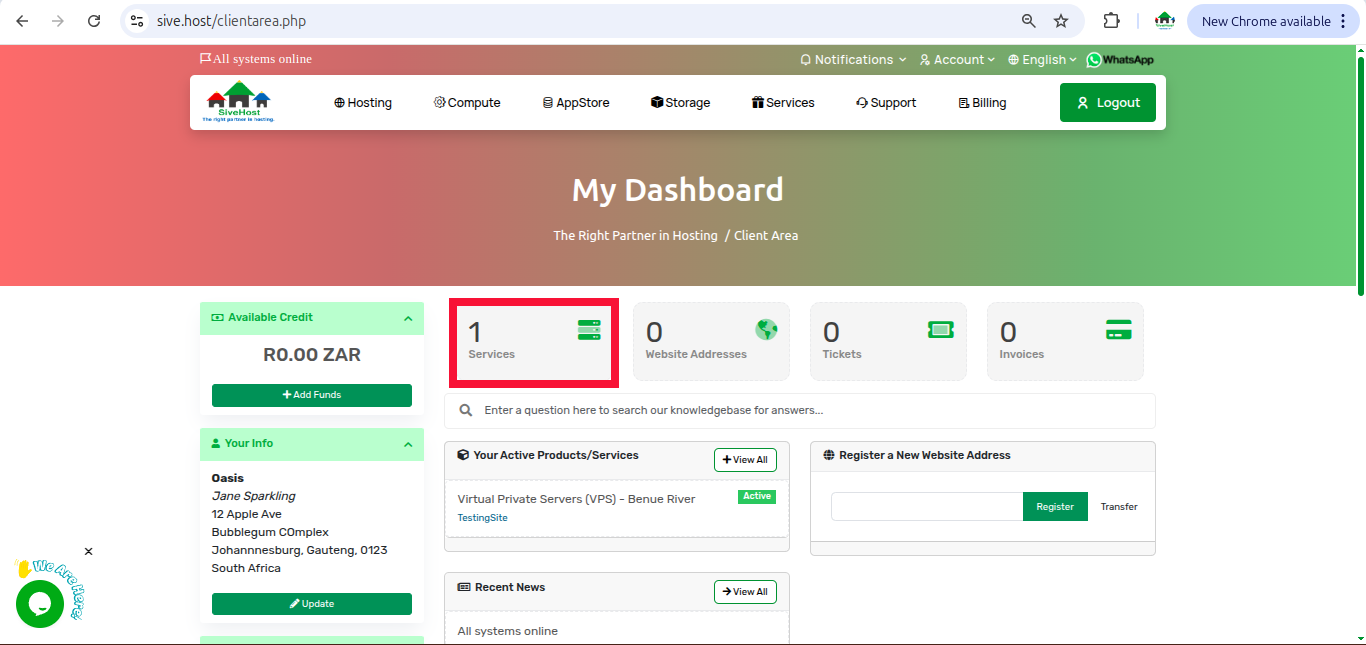
Step 2: Once logged in, on the dashboard, click on services to view all your services
https://sive.host/titfombe/repository/reinstall1.png

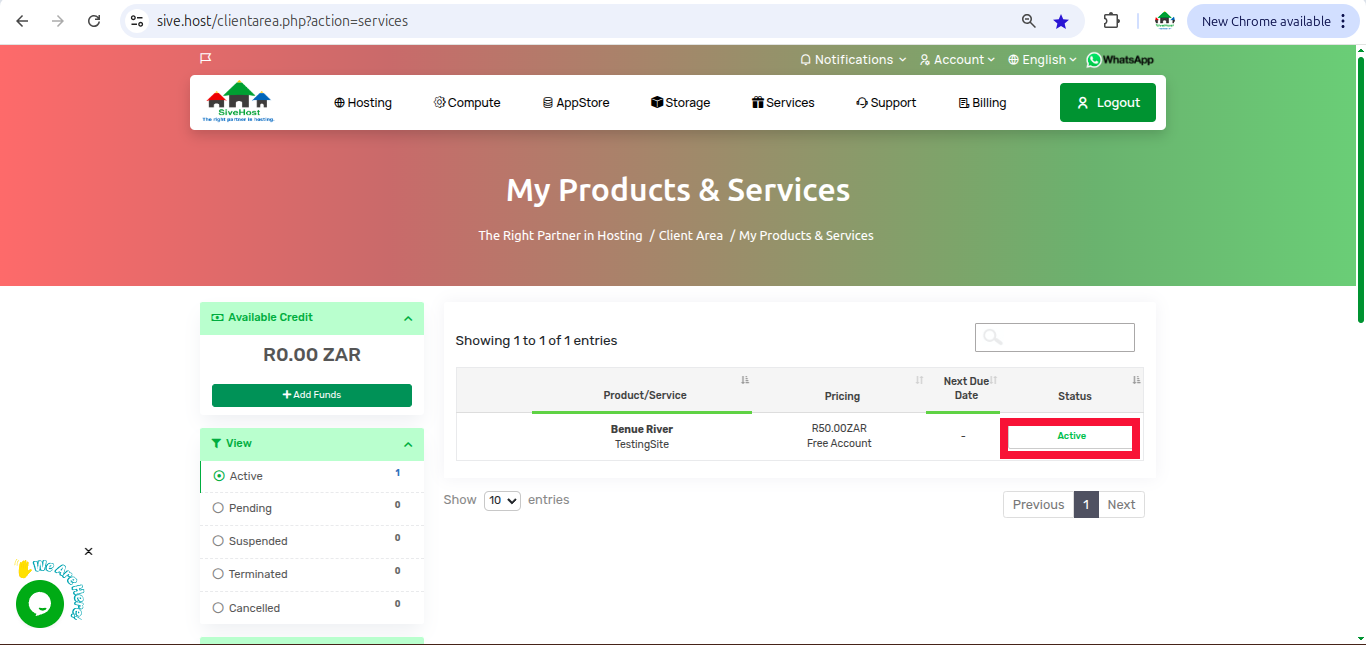
Step 3: On the "product and services" page, locate the sever you want to reinstall  click on "Active" under the status of the server.
https://sive.host/titfombe/repository/reinstall2.png

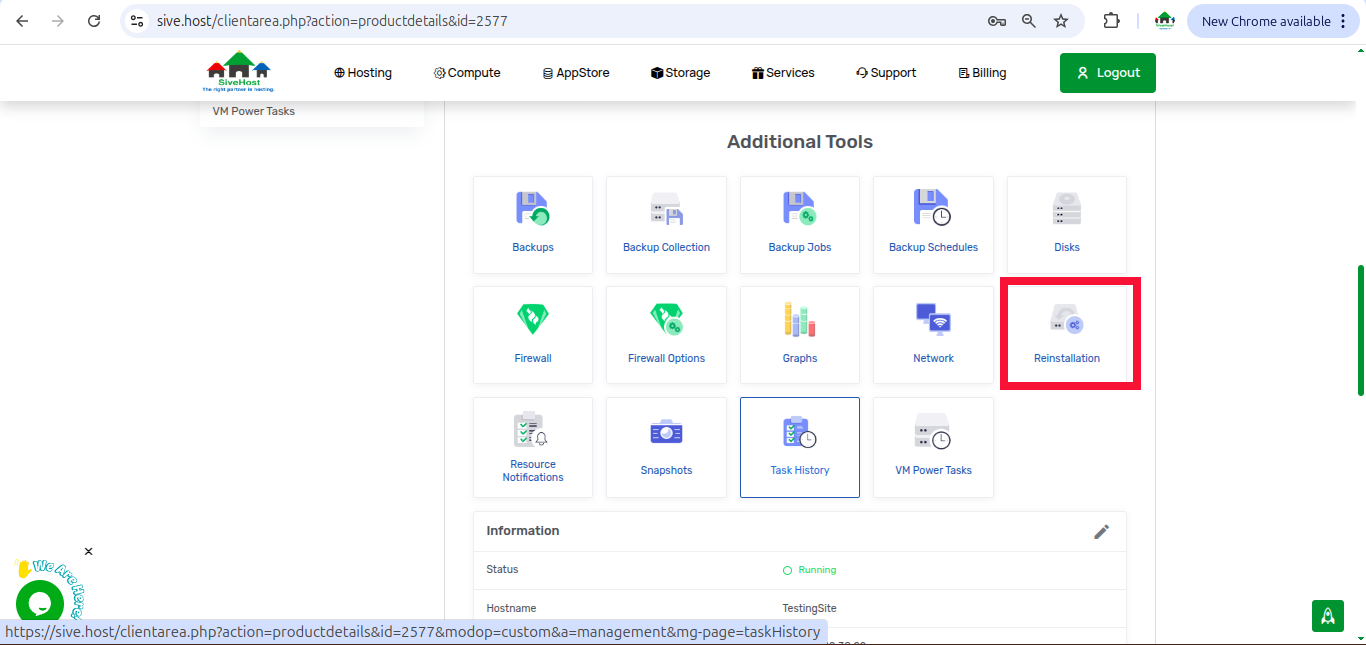
Step 4: On the "Manage Product" page, scroll down to additional tools and click on "Reinstallation"
https://sive.host/titfombe/repository/reinstall3.png

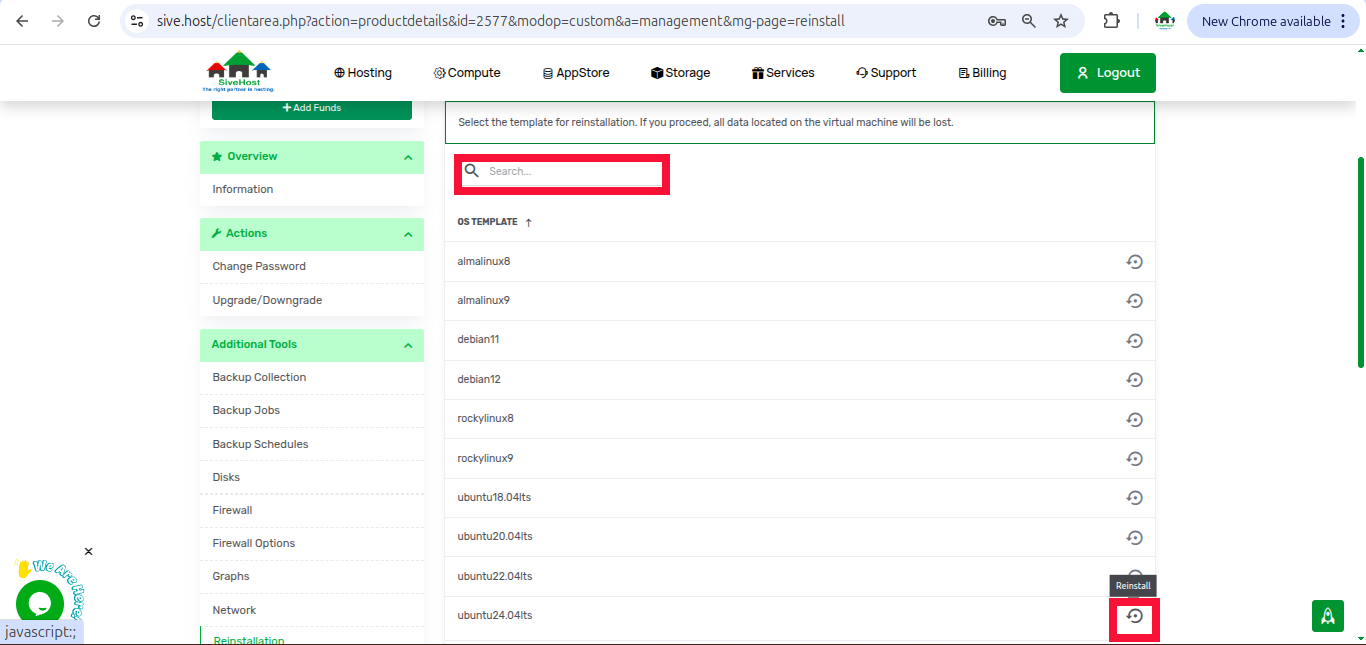
Step 5: Search or locate an operating system (OS) template you want the server to be reinstalled in and click on the circle that is on the far right of the OS you have chosen
https://sive.host/titfombe/repository/reinstall4.png

Step 6: Fill in the password of the server then click on confirm to start the reinstallation. (If you want to add an application to the server, choose an app you want from the list on the drop-down. If not, leave the option as none
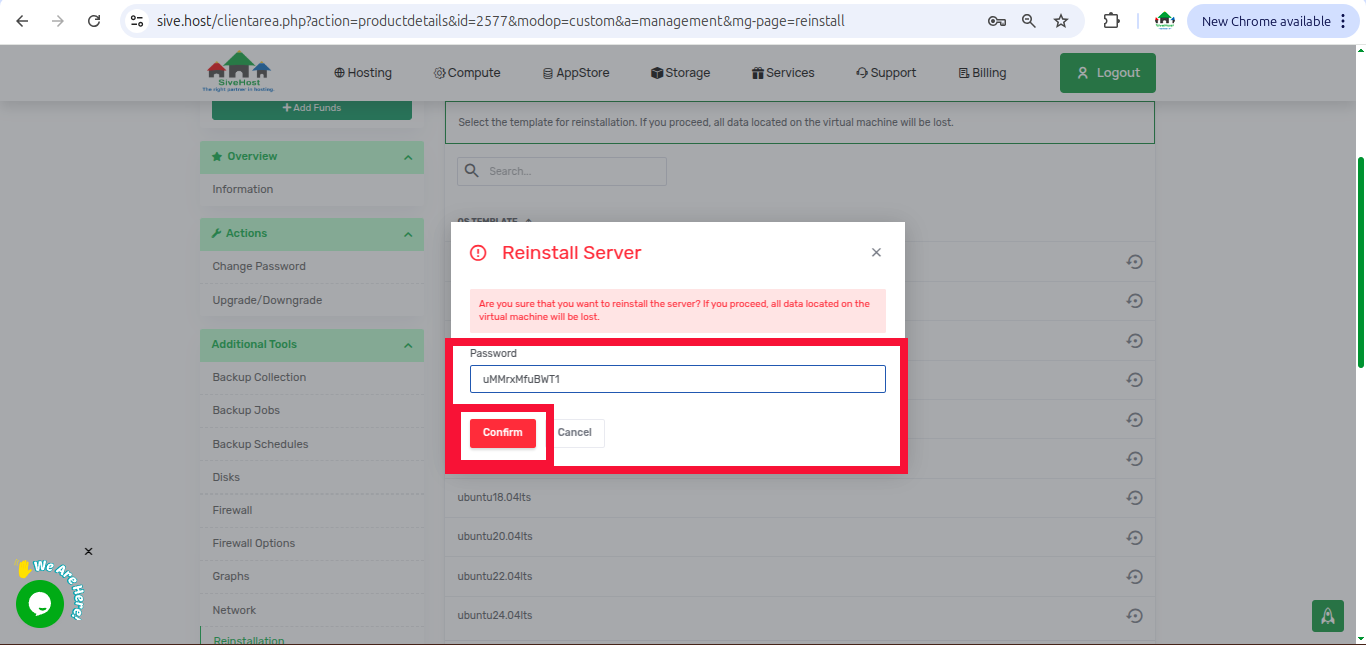
https://sive.host/titfombe/repository/reinstall5.png

Step 7: Wait for approximately 10 to 15 minutes for the server yo finish reinstalling

  • 0 Users Found This Useful
  • Was this answer helpful?

    Related Articles

    How to access your server via noVNC Console

    Accessing your server via the noVNC console1. Log in to your client area and click on your...

    How To Reboot Your Server

    When Should You Reboot Your Server? You may need to reboot your server after making major...

    How to View Your Server Task History

    Why You Might Want to View Task History Viewing your server task history can help you:...

    How to View Your VPS Disks on Client Area

    Purpose of the VPS Disks Section The Disks section provides detailed insights into your VPS’s...

    How to View Your VPS Network on Client Area

    Purpose of the VPS Network Section The Network section offers vital details about your VPS’s...